

What is the IF AND formula in Excel used for?
The IF AND formula in Excel evaluates multiple conditions at once and gives a specific result when all conditions are met. HR, finance, training, and admin teams often use it to make automatic decisions about things like bonus eligibility, pass/fail results, expense approvals, and performance tracking.
At 9:00 a.m., you open an Excel file packed with over a thousand rows of employee info. The employers need a quick answer: Who gets a bonus this quarter? The rules seem straightforward—KPI score above 80 and required training finished. But going through each row manually would eat up hours and cause errors.
This is where the IF AND formula in Excel has a huge impact. With one logical formula, Excel checks multiple conditions at once giving you quick and accurate results across entire datasets. For people working in HR, finance, administration, training, or operations, this formula isn’t just theory – it’s a way to handle real-world workloads more efficiently.
Understanding the Basics: The IF Function in Excel
The IF function is often the first logical formula Excel users learn, and for good reason. It’s like everyday decision-making. Excel checks if a condition is true and then gives one result if it is, and another if it’s not.
The basic structure of the IF function looks like this:
=IF(logical_test, value_if_true, value_if_false)
Let’s say you want Excel to grade sales performance against a goal:
=IF(B2>100, “Above Target”, “Below Target”)
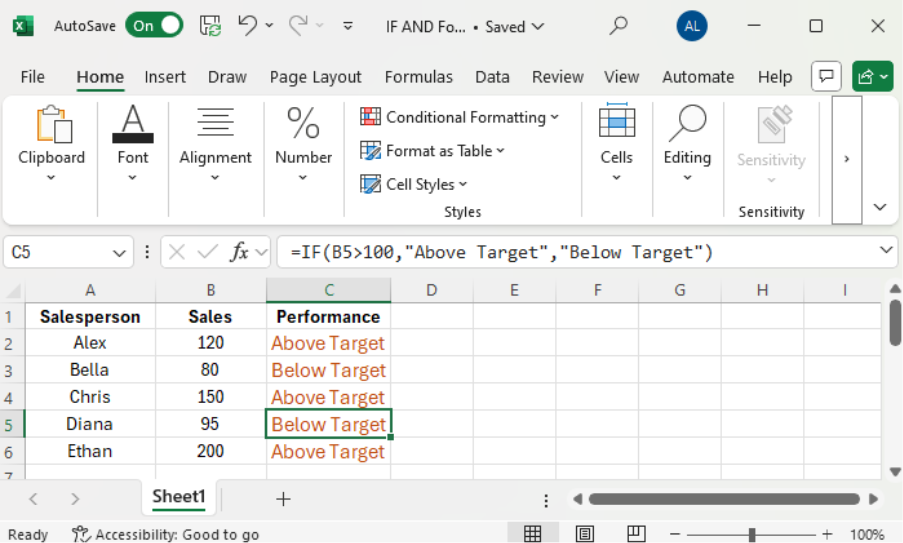
In this case, Excel looks at the value in cell B2. If it’s more than 100, the cell shows “Above Target.” If not, it displays “Below Target.” This works fine for basic situations, but real-world business choices rarely depend on just one factor.
The AND Function: A Must-Have for Practical Excel Use
The AND function lets Excel check several conditions at once. It gives a TRUE result when all your set conditions are met.
It’s structured like this:
=AND(condition1 condition2, …)
For instance:
=AND(A2>50, B2=”Yes”)
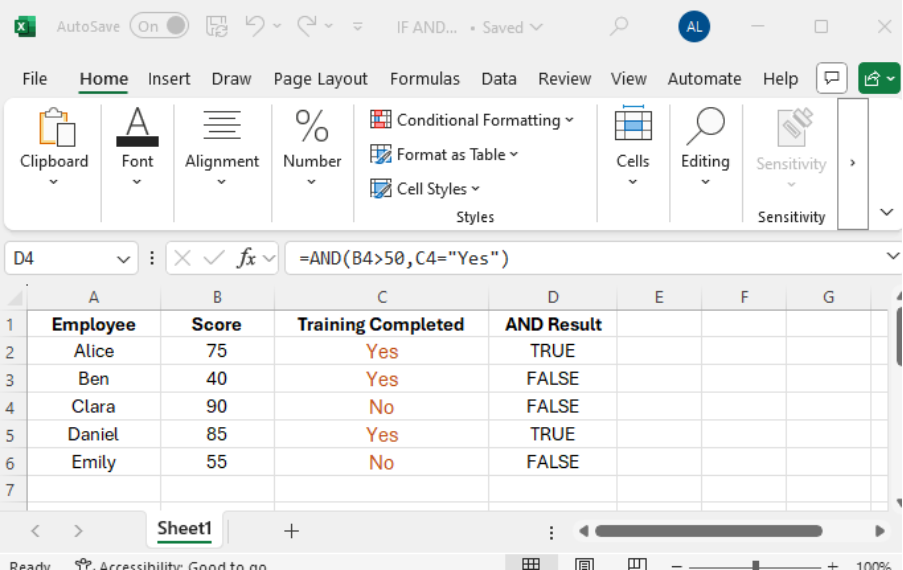
This gives back TRUE if the number in A2 exceeds 50 and cell B2 has “Yes.” By itself, AND just returns TRUE or FALSE. Its real strength shows up when you pair it with IF.
Combining IF and AND: Breaking Down the IF AND Formula
When you put IF and AND together, Excel can make complex, work-ready choices on its own.
The setup looks like this:
=IF(AND(condition1 condition2), value_if_true, value_if_false)
Here’s how Excel operates at its core:
It looks at all your conditions together. When every condition is met, it gives one result. If even one condition doesn’t hold up, it shows the other outcome. This one formula can take the place of hours of manual checks.
Step-by-Step Example: Pass or Fail Evaluation
Think about a training or WSQ assessment situation. A student needs to get at least 60 and show up to at least 75% of classes to pass.
The formula would look like this:
=IF(AND(B2>=60 C2>=0.75), “Pass”, “Fail”)
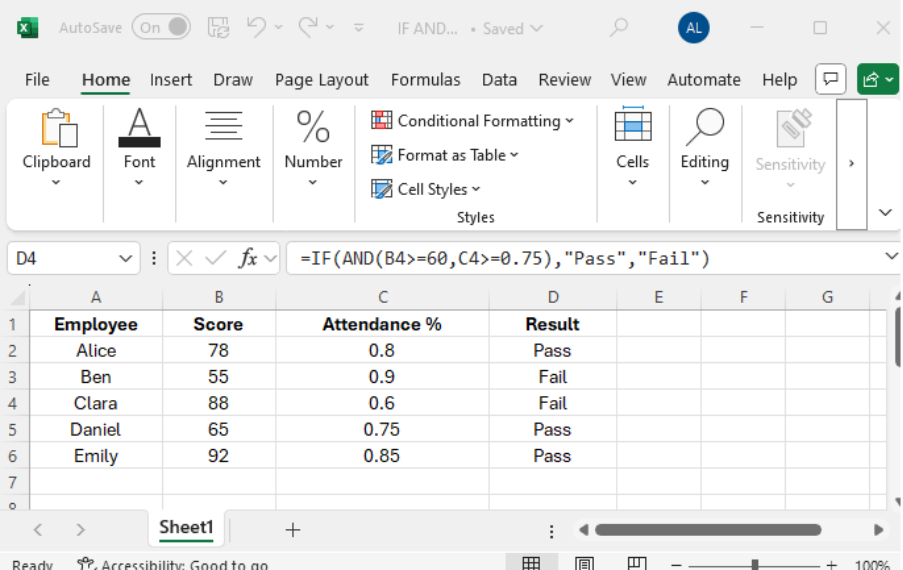
Excel checks both the exam score and attendance rate at the same time. It shows “Pass” when a student meets both requirements. This ensures consistency and fairness across all records.
Formulas Used Across Different Departments
1. HR: Bonus Eligibility
Criteria: KPI ≥ 80 and training completed.
=IF(AND(KPI>=80 Training=”Yes”), “Bonus”, “No Bonus”)
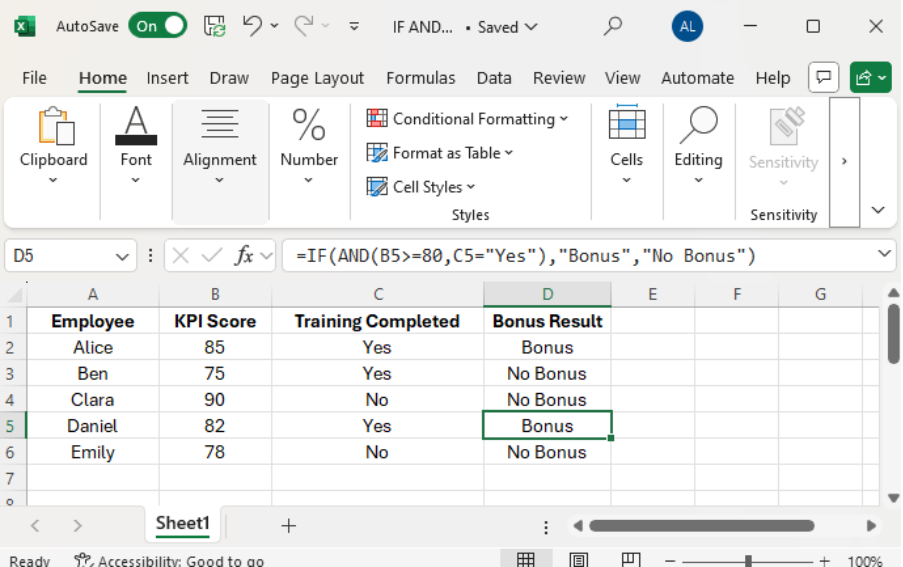
You don’t need to sift through countless employee files anymore.
2. Finance: Expense Control
To Flag Unapproved Expenses:
=IF(AND(Expense>Budget Approved=”No”), “Investigate”, “Clear”)
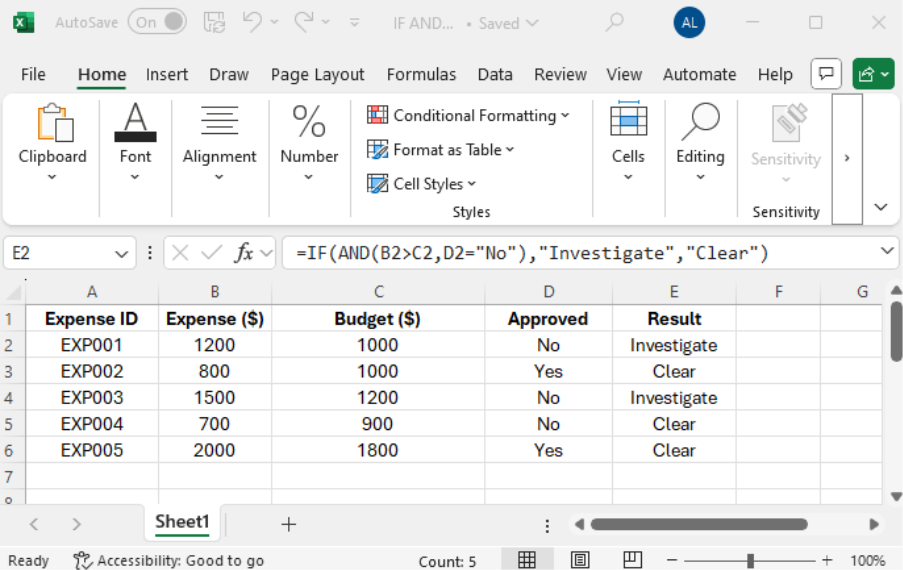
This formula points out areas that need attention.
3. Sales: Target Achievement
To Check Team Performance:
=IF(AND(Revenue>=100000 Clients>=10), “Achieved”, “Missed”)
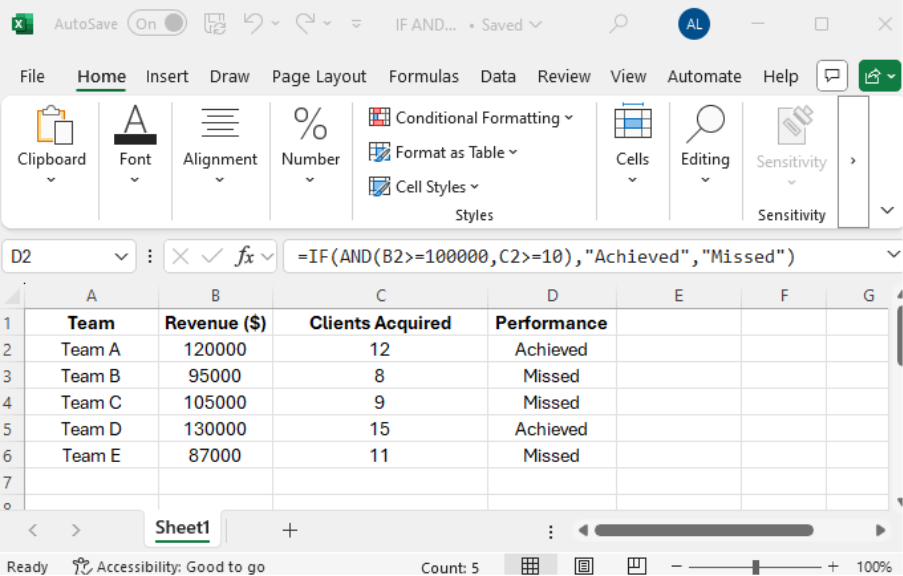
This formula gives managers quick insight.
4. Admin: Overtime Approval
Here’s how to determine if someone qualifies for overtime:
=IF(AND(Hours>40, Approval=”Yes”), “Overtime”, “Standard”)
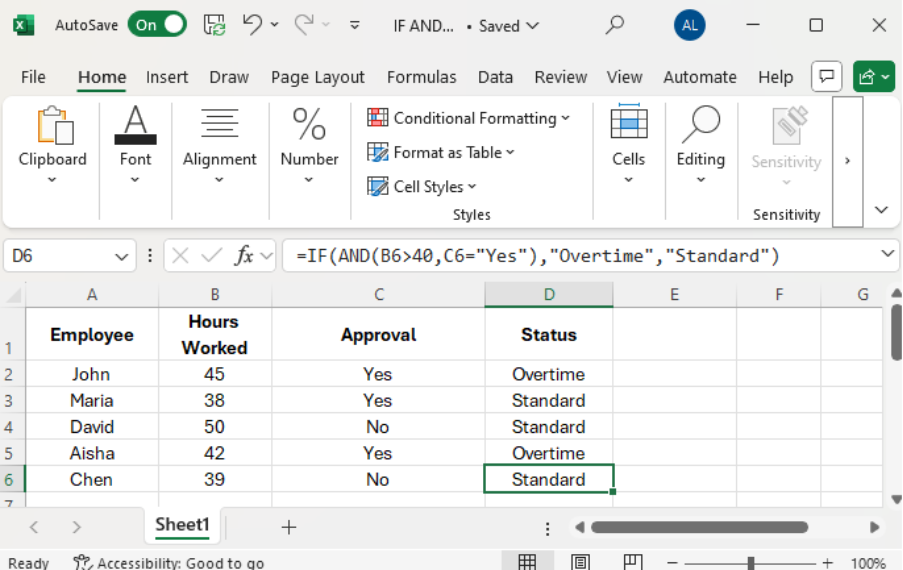
This approach cuts down on pay disagreements and makes things clearer.
5. Training (WSQ Context)
For courses with WSQ accreditation, you need to meet two criteria to pass:
=IF(AND(Attendance>=0.75 Score>=50), “Pass”, “Fail”)
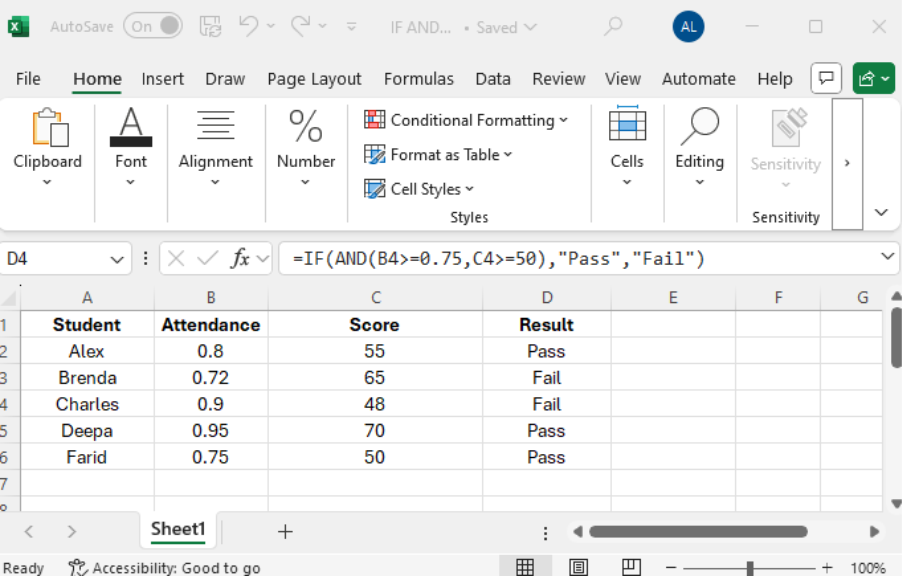
This method ensures that everyone is graded the same way.
Advanced Applications
Nested IF AND
For Grading With Multiple Levels:
=IF(AND(Score>=90, Attendance>=0.75),”Excellent”, IF(AND(Score>=70, Attendance>=0.75),”Good”,”Needs Improvement”))
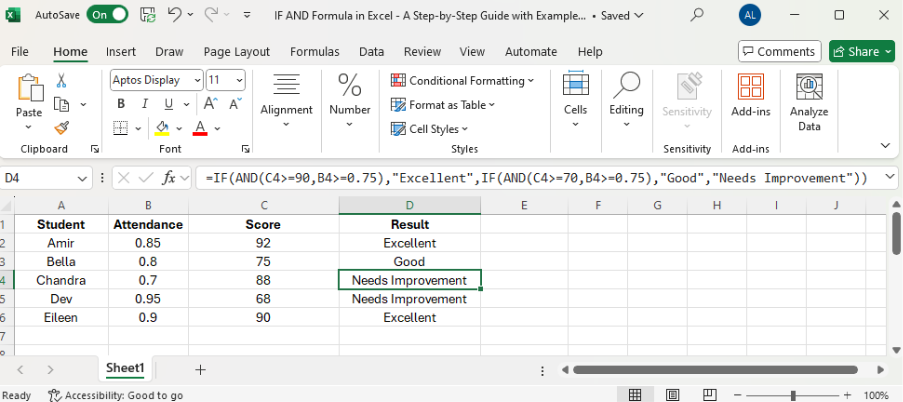
IF AND + OR
When You Need More Flexibility:
=IF(AND(KPI>=80 OR (Training=”Yes” Experience>=5)), “Eligible”, “Not Eligible”)
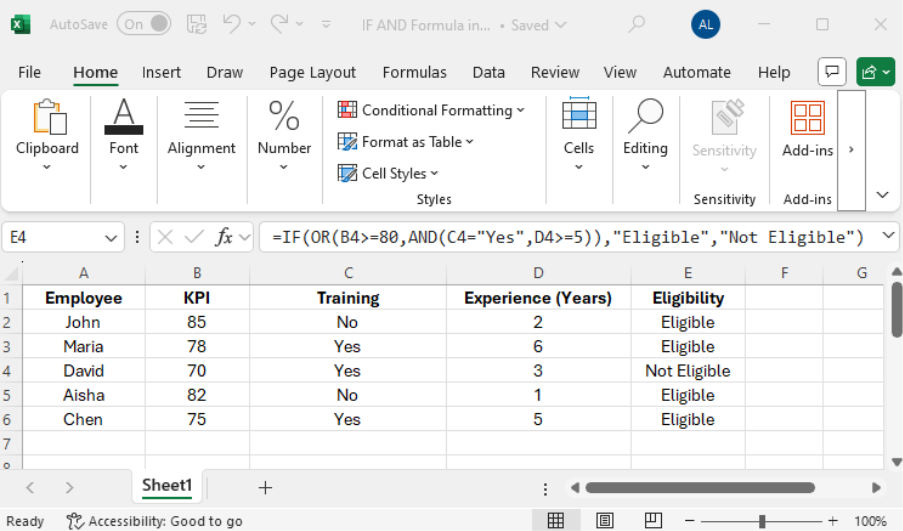
This shows how real-world policies work.
Conditional Formatting
Do you want to see visuals instead of text? Use IF AND logic in conditional formatting:
=AND(A2>40 B2=”Yes”)
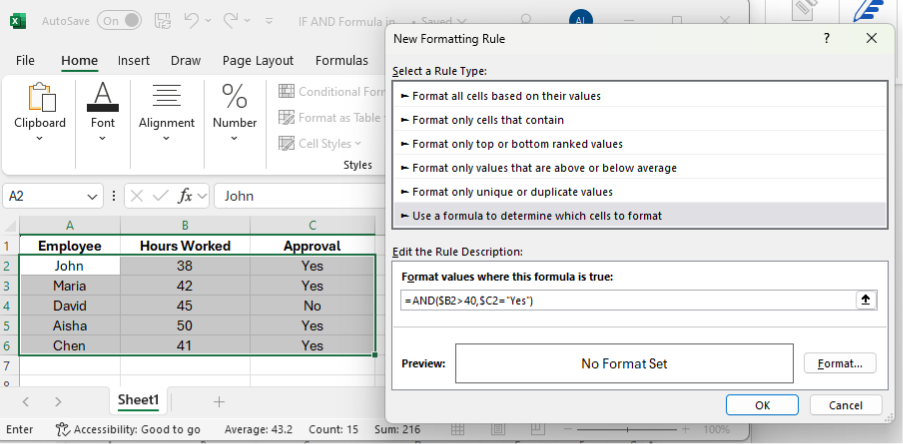
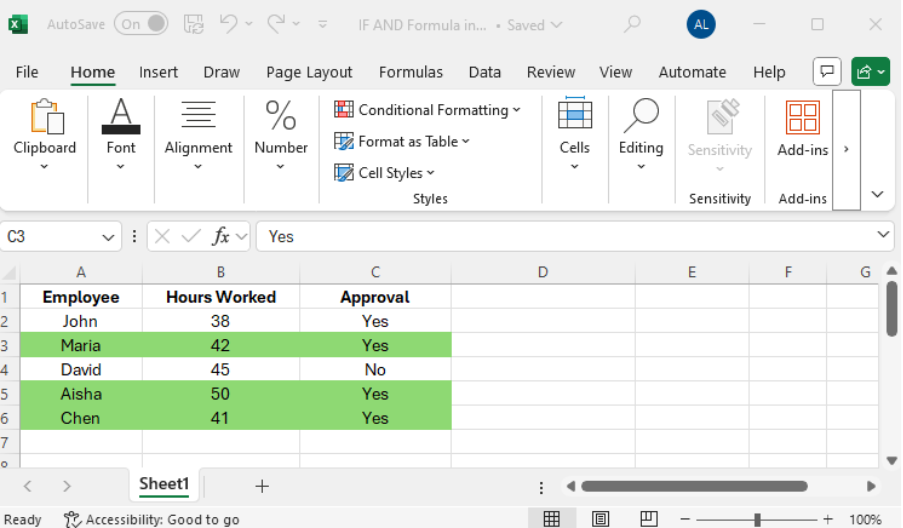
This highlights rows that meet both conditions.
How Different Departments Use the IF AND Formula
The IF AND formula isn’t just for one job or field. It’s useful anywhere decisions depend on more than one condition.
Common Ways People Use It at Work
| Department | Practical Scenario | Example Formula Outcome |
| HR | Bonus eligibility based on KPI and training | Automatic “Bonus” or “No Bonus” |
| Finance | Flagging overspent and unapproved expenses | Highlights items needing review |
| Sales | Target achievement based on revenue and clients | Instant performance status |
| Admin | Overtime approval with hours and manager consent | Reduces payroll disputes |
| Training / WSQ | Attendance and score compliance | Ensures standardised grading |
To illustrate, an HR bonus check might use:
=IF(AND(KPI>=80 Training=”Yes”), “Bonus”, “No Bonus”)
Excel evaluates this across hundreds or thousands of employees.
Common Mistakes to Steer Clear Of
- Mismatched Brackets → Each “(” needs a matching “)”.
- Forgetting Quotes → Words need “quote marks” around them.
- Data Entry Errors → Extra spaces in “Yes ” can mess up the formula.
- Overcomplication → Too many nested conditions get confusing; sometimes extra columns work better.
Why Getting Good at IF AND Boosts Your Career
In 2025–2026, Excel continues to be a crucial workplace skill across industries in Singapore.
- Productivity: Cut down manual check time from hours to seconds with automation.
- Precision: Cut down on mistakes made by people.
- Growth Potential: Suits small groups or records in the thousands.
- Relevance: Fits HR, finance, sales, training, and office work.
What’s more, it shows logical thinking, the ability to automate tasks, and digital skills—all of which employers value.
People who get good at formulas like IF AND aren’t just quicker; they’re also more dependable and better prepared for jobs that involve reporting, following rules, and making choices.
Final Thoughts
The IF AND formula in Excel is more than just a technical feature—it has an impact on how you handle data. It eliminates guessing, ensures consistency, and helps you make sure decisions when time is tight.
The next time a big spreadsheet seems daunting, keep in mind that Excel is built to do the logical thinking for you. Our Essential Office Skills Course with Digital Tools gives learners the confidence to use Excel and other workplace tools better. With IF AND in your toolkit, you complete tasks quicker, slip up less often, and show yourself as a tech-savvy pro in today’s work world.
And thanks to Workforce Skills Qualifications Course Funding & SkillsFuture Credits, improving your Excel skills doesn’t cost much.
Frequently Asked Questions:
When should I use IF AND instead of a normal IF formula?
You should use IF AND when you need to make a decision based on more than one condition being true at the same time. It works well for workplace rules like eligibility checks, compliance requirements, or performance evaluations.
Can IF AND handle large datasets?
Yes. IF AND formulas work well even with thousands of rows. This makes them useful for payroll, HR records financial reports, and WSQ training data.
Will IF AND still matter in 2025–2026?
For sure. Even with new tools like AI and Power BI, Excel stays a key workplace platform. Logical formulas like IF AND play a vital role in everyday decision automation.
Can people use IF AND with text values?
Yes. IF AND can check text conditions. It can see if a cell has “Yes,” “Approved,” or a specific group as long as you use quotation marks the right way.

I’ve always been drawn to the power of writing! As a content writer, I love the challenge of finding the right words to capture the essence of HR, payroll, and accounting software. I enjoy breaking down complex concepts, making technical information easy to understand, and helping businesses see the real impact of the right tools.