


What Does the MATCH Function Do in Excel?
Excel’s MATCH function pinpoints a value’s position in a row or column and gives its relative spot. Users often pair it with the INDEX function to get related data on the fly making it a go-to lookup tool for HR, finance, reporting, and dashboard building.
You’re looking at a big Excel file full of financial data, inventory records, or employee information. The numbers check out, but finding the right value is a pain. Endless scrolling or manual searches eat up time and make mistakes more likely. This is where the MATCH function in Excel shines.
MATCH doesn’t just “find” data—it pinpoints the exact position of a value in a dataset. When you team it up with the INDEX function, Excel becomes a lookup and reporting powerhouse. It’s a go-to tool for HR, finance, operations, and management dashboards in 2026.
This guide sheds light on how MATCH works how it teams up with INDEX, and how experts use it to create flexible, future-ready spreadsheets.
What Does the MATCH Function Do in Excel?
The MATCH function looks for a specific value in a row or column and gives back its relative position, not the actual value. This difference matters because Excel can then use that position to get related information as needed.
Let’s say the values 25 38 40, and 41 are in cells B2:B5. The formula:
=MATCH(38 B2:B5 0) 2:B5, 0), you’ll get 2 as the answer. This happens because 38 is the second item in that range.
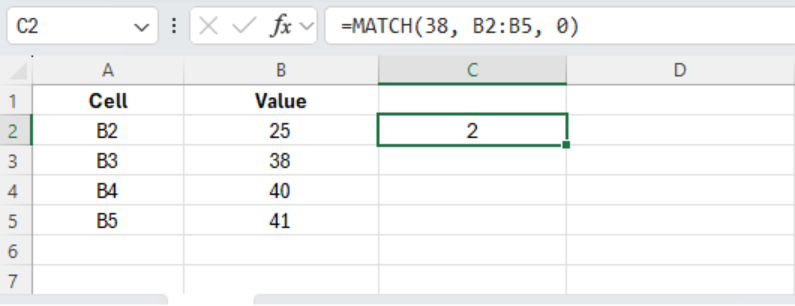
gives back 2, because 38 is the second item in that range. Excel doesn’t give you the number 38—it gives you its position. This position-based approach is what makes MATCH so useful when used with other functions.
MATCH Function Syntax Broken Down
The MATCH formula needs three parts:
=MATCH(lookup_value lookup_array, [match_type])
- lookup_value (required): the value you want to find.
- lookup_array (required): the range to search.
- match_type (optional): 1 (or left out) for close match with sorted ascending data; 0 for exact match; –1 for close match with descending-sorted data (Microsoft Support, Corporate Finance Institute).
Apart from giving a position, MATCH has compatibility with wildcards *(? ) when match_type is 0, which helps with partial text matches. It is to be noted that MATCH handles one-dimensional arrays and often teams up with INDEX to get the actual value from the matched spot.
In 2026 business settings, companies should use exact matching to avoid reporting problems for payroll, compliance, and financial analysis.
Why People Use MATCH Alone
MATCH by itself shows you where a value exists. It doesn’t tell you what value to return. This is why people almost always pair MATCH with the INDEX function creating one of Excel’s most reliable ways to look up data.
INDEX gets data from a specific spot. MATCH tells Excel which spot to use. Together, they replace older less flexible ways to look things up.
How INDEX and MATCH Team Up
The INDEX function gives back a value from a specific position in a range. It looks like this:
=INDEX(range, row_number, [column_number])
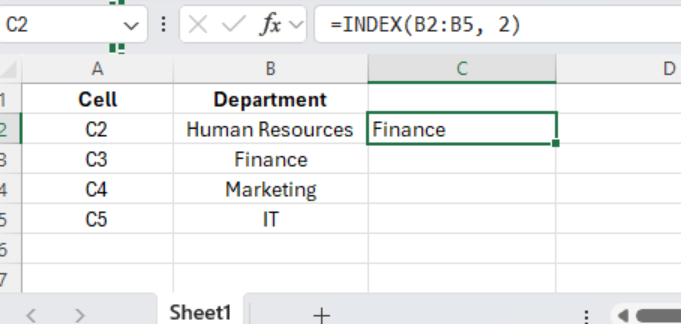
When you nest MATCH inside INDEX, Excel finds the right row (or column) for you .
A common INDEX + MATCH formula looks like this:
=INDEX(return_range, MATCH(lookup_value, lookup_array 0))
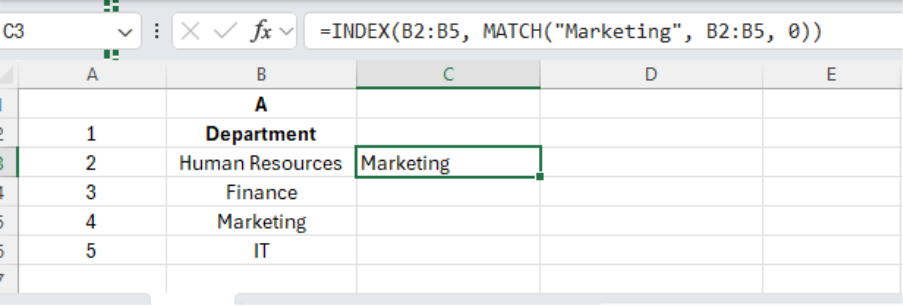
This combo lets Excel get data without using fixed column numbers.
Why INDEX + MATCH Beats VLOOKUP
Lots of experts still use VLOOKUP, but INDEX + MATCH has become the go-to method in today’s Excel world.
INDEX + MATCH has several advantages over VLOOKUP
- Searches that return values to the left of the search column.
- Lookups that work in two dimensions or 2-D (using MATCH for row and column)
- Searches that are case-sensitive or use wildcards (with help from functions like EXACT or wildcard characters)
- Lookups that use multiple criteria and create dynamic dashboards, which prove useful in business datasets that change over time
Comparison Table: INDEX + MATCH vs VLOOKUP
| Feature | INDEX + MATCH | VLOOKUP |
| Column order flexibility | Yes | No |
| Left-side lookup | Yes | No |
| Two-way lookup | Yes | No |
| Large dataset performance | Faster | Slower |
| Compatibility across versions | High | Moderate |
This explains why finance teams, HR departments, and analysts now prefer INDEX + MATCH for their dashboards and reports.
a) Adaptability When Workbooks Change
When your company’s data shifts—new columns show up, formats change—VLOOKUP’s reliance on set column indexes can screw up your formulas. INDEX + MATCH adapts: as long as you’ve picked the right lookup range, the column order isn’t important.
b) Speed & Effectiveness
For money-related modeling or large datasets, INDEX + MATCH can perform better than VLOOKUP—it’s about 30% faster with organized data.
c) Wider Lookup Options
Want to do a left-lookup or match? How about a two-way matrix lookup? INDEX+MATCH can handle all of these; VLOOKUP can’t. There are examples that even show how to search in reverse and look up with multiple criteria.
d) Works Across Excel Versions
INDEX + MATCH runs in older Excel versions too, unlike XLOOKUP, which you’ll spot in more recent updates. This matters a lot for companies using different versions.
4. Step-by-Step Example:
Looking Up Departments Dynamically in Reports
Picture this: you’re in charge of department-level reporting. You have an employee table.
You’re looking for a formula to automatically get the department for any employee you choose. Here’s what to use:
=INDEX(B2:B6, MATCH(“Haley Bates” A2:A6, 0))
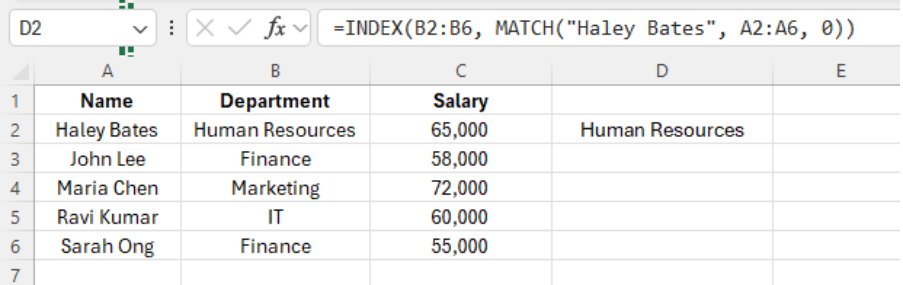
- MATCH finds “Haley Bates” in the Name column and gives you the row number in A2:A6.
- INDEX grabs the Department from B2:B6 in the row that matches.
This pulls up “Human Resources” without any manual searching—great for dashboards and workforce reports.
If you need a two-way lookup—like finding where an employee and month intersect—you can put one MATCH inside another:
=INDEX(data_matrix MATCH(emp_name emp_list 0) MATCH(month month_headers 0))
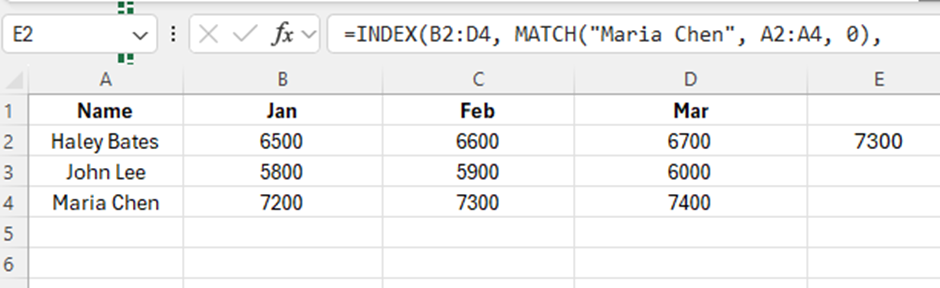
To Get Maria Chen’s February Salary.
This grabs the exact cell where rows and columns meet—perfect to create dynamic, matrix-like reports.
Top Tips & Common Mistakes to Watch Out For
- Use 0 for exact matches all the time unless you need to use approximate logic—this stops unexpected mismatches from happening (Microsoft Support, Corporate Finance Institute).
- Stop #N/A errors by using IFERROR or IFNA when a lookup fails—this helps create polished reports.
- Use structured tables or named ranges for datasets that change—your formulas will adjust as your data grows.
- Don’t use whole-column references in big datasets—they make things slow; instead, stick to used ranges.
Final Thoughts
The MATCH function when paired with INDEX, transforms Excel from a simple spreadsheet tool into a top-notch reporting engine. It cuts down on time, minimizes mistakes, and adjusts as datasets expand—what today’s workplaces need in 2026.
Getting a handle on MATCH isn’t about learning formulas by heart; it’s about figuring out how to handle data more . Once you grasp this concept, Excel stops being a roadblock and starts to give you an edge over others.
If you want to get good at these Excel skills in an organized way, take a look at our Digital Office Skills Course.
Frequently Asked Questions:
What is the MATCH function used for in Excel?
Excel users rely on the MATCH function to find where a value sits in a dataset. When teamed up with INDEX, it lets you look up data across big spreadsheets with ease and accuracy even if the data layout shifts.
Is MATCH better than VLOOKUP?
INDEX and MATCH together offer more flexibility than VLOOKUP. You can look up values from the left side, work with datasets that change, and handle big files faster. That’s why many people prefer to use them in Excel these days.
Should I always use match type 0?
Yes. When you use match type 0, you get exact matches. This is crucial for HR files paying employees financial reports, and spreadsheets that need to follow rules.
Can MATCH work with text and numbers?
Yes. MATCH can handle both words and numbers. If you use it right, you can also use special characters to match parts of text.

I’ve always been drawn to the power of writing! As a content writer, I love the challenge of finding the right words to capture the essence of HR, payroll, and accounting software. I enjoy breaking down complex concepts, making technical information easy to understand, and helping businesses see the real impact of the right tools.